Profile Score
How to download your LinkedIn profile as a PDF
Open your own profile, click More, then Save to PDF. On a phone there is one step before that: switch your browser to desktop mode, because the LinkedIn app does not offer Save to PDF at all.
Which are you reading this on?
Pick one. Both routes end with the same file.
- On a phoneTwo taps to put your browser in desktop mode, then the same LinkedIn menu.
- On a laptopFive steps and the PDF is in your Downloads folder.
Save to PDF not available to you?
If your profile is not in English, or your browser will not hold desktop mode, LinkedIn will email you a ZIP of your profile data instead — and Profile Score reads that ZIP.
Compare the two filesOn a phone
Here is the whole truth about phones, once, so you do not read it in pieces. NEITHER route is in the LinkedIn app: LinkedIn says Save to PDF is not available on the mobile app, and says the data export is currently not available on mobile. Your phone's browser can still do both. Turn desktop mode on — two taps below — and the profile page loads the way it does on a laptop, with the More button and Save to PDF inside it, and the settings page the data export needs.
Chrome on Android
- 01
Open Chrome — the browser, not the LinkedIn app — and go to linkedin.com. Sign in if it asks.
- 02
Tap the three dots at the top right.
- 03
Tap Desktop site. The page reloads in the laptop layout.
Safari on iPhone or iPad
- 01
Open Safari — the browser, not the LinkedIn app — and go to linkedin.com. Sign in if it asks.
- 02
Tap aA in the address bar.
- 03
Tap Request Desktop Website. The page reloads in the laptop layout.
This opens your own profile in a new tab, so these steps stay open in this one. It lands you exactly where step 1 below ends. Desktop mode is still yours to turn on, using the menu above: no link can switch desktop mode on for you.
Then follow the five steps below
In desktop mode the page looks the way it does on a laptop, so the five steps are the same on your phone. Pinch to zoom if the More menu is small, and keep desktop mode on until the file has saved.
Go to the five stepsDesktop mode opens the data export as well. If Save to PDF is not available to you, stay in this browser and ask LinkedIn for the ZIP instead — the steps are further down, and they start from this same screen.
Go to the data exportOn a laptop
Five steps, about a minute. This is also the phone route once desktop mode is on — the page is the same page.
Open your profile
On a laptop, sign in to LinkedIn and click Me, then View Profile.
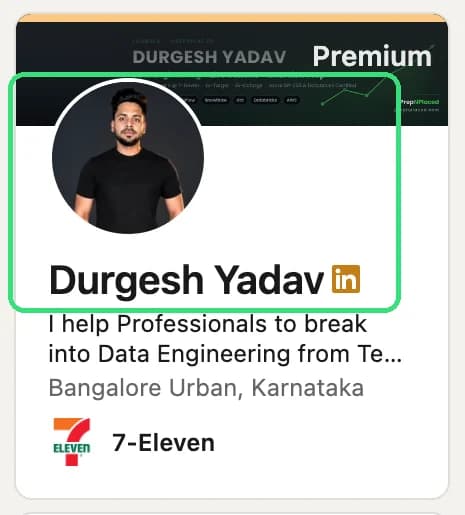
If that goes wrong
It has to be your own profile. On somebody else's, the same menu offers Follow and Message, and there is no Save to PDF in it.
Click More or Resources
Under your name and headline, next to Open to and Add profile section, click More — some profiles show the same button as Resources.
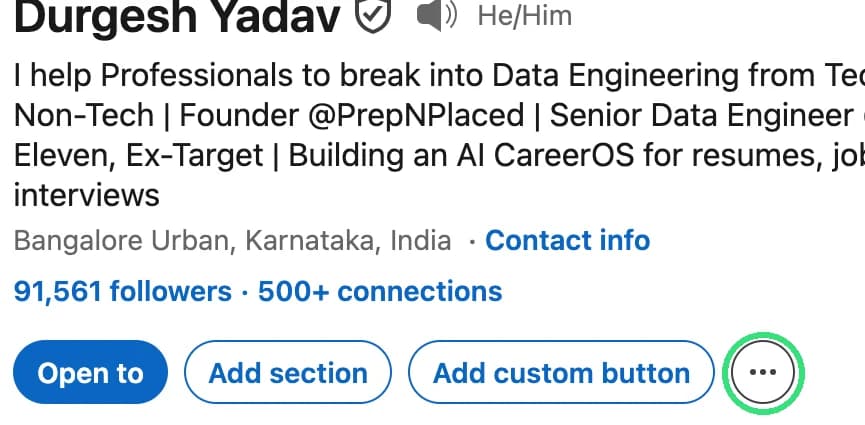
If that goes wrong
Still no button? On a narrow window it collapses into the row above — widen the window, or zoom out, and it comes back beside Add profile section. On a phone that means desktop mode has to still be on: the layout it collapses to is the one the app-sized page uses.
Save to PDF
Choose Save to PDF from the menu. LinkedIn builds the file for a few seconds.
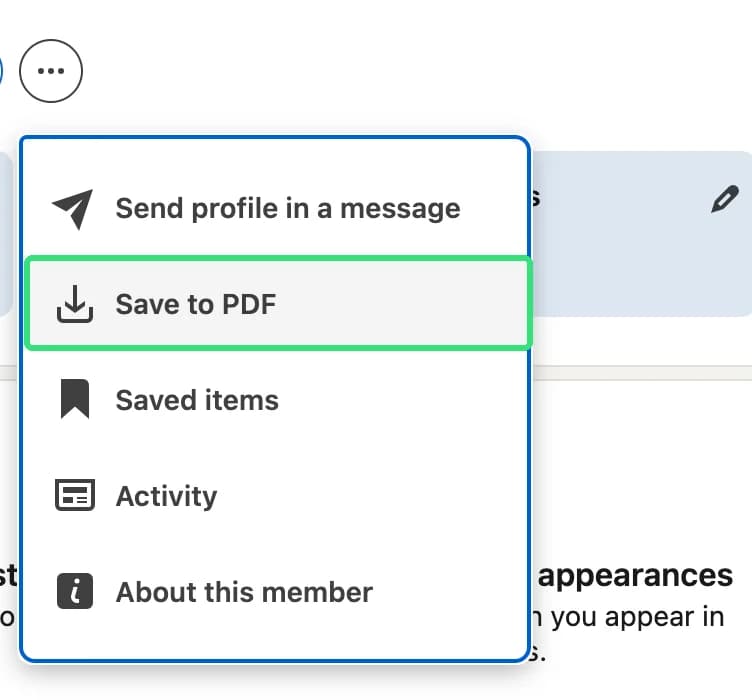
If that goes wrong
Save to PDF missing from the menu is almost always the profile language: LinkedIn builds this file in English only. Set your profile language to English, reload, and it appears.
Find the download
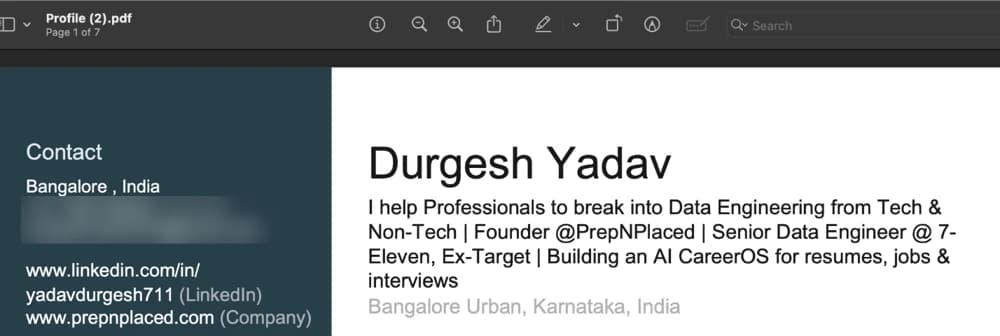
The PDF lands in your Downloads folder, named after your profile.
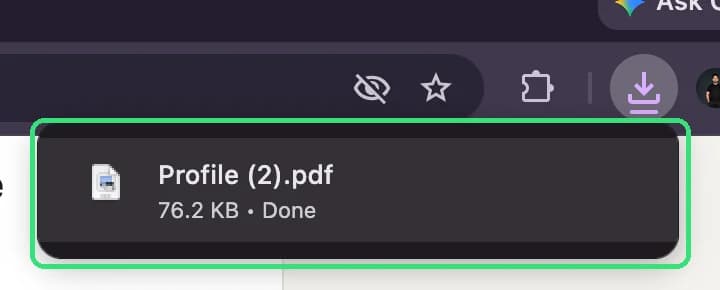
If that goes wrong
If it is not in Downloads, open your browser's own downloads list. LinkedIn names the file after your profile, so searching for the word LinkedIn will not find it.
Upload it here
Drop that file in the box on this page. It is read once and deleted.
If that goes wrong
Upload the file exactly as LinkedIn saved it. A page printed to PDF, or a screenshot, carries no text layer and is refused with a plain message.
Three things that stop Save to PDF working
All three are LinkedIn's rules, not ours. They are worth knowing before you go looking for a button that is not there.
Your profile language has to be English
LinkedIn builds the PDF from the English version of your profile and the file supports English characters only. If your profile language is set to something else, Save to PDF either does not appear in the menu or the file comes out wrong.
LinkedIn Help (opens in a new tab)200 downloads a month
LinkedIn caps Save to PDF at 200 downloads per month. Scoring your own profile will never reach that, but it is why the option can quietly stop working on an account that saves a lot of profiles.
LinkedIn Help (opens in a new tab)It is not in the LinkedIn mobile app
LinkedIn states that Save to PDF is not available on the LinkedIn mobile app. There is no setting that turns it on. That is the whole reason the phone route starts with desktop mode rather than with a menu.
LinkedIn Help (opens in a new tab)
The second route: ask LinkedIn for your data export
LinkedIn will email you a ZIP of your own profile data, and Profile Score reads that ZIP. It is a longer road than Save to PDF — a request, an email, a download — and it is the road that still works when Save to PDF does not.
Which file should you send us?
These are not two ways of getting the same file. Each carries something the other does not, so the choice is a real one — here are both sides of it.
Save to PDF
About a minute, no email
What it carries
- Your headline, your About, every job and your education.
- Your public profile URL, so the custom-URL check is scored straight from the file.
- Three skills: the Top Skills pinned to your profile.
What it costs you
- Your profile language has to be English, and the file supports English characters only.
- Desktop browser only — LinkedIn does not offer it in the mobile app.
The data export ZIP
Minutes, by email
What it carries
- The same headline, About, jobs and education.
- Your full skills list rather than three pinned ones.
- Your projects, which the PDF does not carry at all.
What it costs you
- A request, an email and a download instead of one menu.
- No public profile URL in the file, so the form asks you to paste your profile link.
- Desktop browser only as well: LinkedIn says this feature is currently not available on mobile.
Request the export, click by click
Six steps. The words in each one are the words LinkedIn puts on your screen, so you are looking for the same thing you are reading.
- 01
Open LinkedIn in a browser, not the app
LinkedIn states that this feature is currently not available on mobile. On a laptop you are already there. On a phone, switch the browser to desktop mode first — the two taps are in the phone section above — and then everything below works the same.
- 02
Click the Me icon, then Settings & Privacy
Me is your own photo at the top of the LinkedIn homepage. Clicking it drops a menu down, and Settings & Privacy is in it.
- 03
Click Data Privacy in the left rail
Settings opens on Account preferences. Data Privacy is one of the headings in the list down the left-hand side.
- 04
Under How LinkedIn uses your data, click Download your data
That is the heading it sits under. To skip the three clicks above entirely, open linkedin.com/psettings/data-privacy and you land on this screen.
- 05
Pick your files, then click Request archive
The screen offers two things: one larger archive of everything, or a list of individual files you tick. Tick the files — the next block says exactly which — then click Request archive. That is the request LinkedIn answers within minutes.
- 06
Open LinkedIn's email and download the ZIP
The link in it downloads a .zip to your Downloads folder. Download it on the computer you will upload from, and leave the file alone once it lands.
What to tick on the Request archive screen
Ticking Profile on its own is the mistake that quietly costs people their score. On LinkedIn's screen, Profile is one file among many, and your jobs, your skills and your education are separate rows in the same table. Profile on its own is only your name, headline and About — an archive with nothing else in it uploads fine and then scores as somebody with no jobs and no skills. Tick these 4 files:
- ProfileYour headline, your About, your location. This is the one file the archive cannot be read without.
- PositionsEvery job: title, company, dates and the description under each. Your whole experience score is in here.
- SkillsYour full skills list — the one thing the ZIP carries more of than a PDF.
- EducationYour degrees, schools and dates — and, for a fresher, most of what there is to score.
The email, and the 72 hours
LinkedIn emails you to say your data archive is ready, with a link to download it. The file stays available for download for 72 hours. After that the link stops working — nothing is lost, you request it again from the same page.
If the email does not arrive
- 01
Look in spam, and in Gmail's Promotions tab. It is an automated email with a download link in it, which is the exact shape those filters are built for.
- 02
It goes to the email address on your LinkedIn account, which is not always the one you read every day. Settings & Privacy is where you can check which address that is.
- 03
A larger archive is not late until 24 hours have gone. If a specific-file request is an hour old, assume the click never landed: go back to Download your data and press Request archive again.
Upload the ZIP exactly as it downloaded
This is the step people improvise on, and every version of improvising fails the upload.
- 01
Do not unzip it. We want the .zip file itself, not the folder your computer makes when you open it.
- 02
Do not rename it. Nothing in the file depends on its name — but renaming is where people end up sending us something they made rather than the thing LinkedIn made.
- 03
Do not open the CSVs inside and save them again. A spreadsheet app rewrites a CSV on save, and the rewritten one is not what LinkedIn sent.
- 04
Do not upload one CSV on its own, and do not build your own ZIP out of a few of them. The archive is read as the single file it arrived as.
What we do with your file
The PDF or ZIP is read once and deleted. The profile text taken from it is kept 30 days so you can re-score after your edits, then deleted.
- We never ask for your LinkedIn password and never sign in as you: you export the file yourself and upload it here.
- Your profile is read to build your report and for nothing else: we never train a model on it, it is never shown to a recruiter or an employer, and you can delete everything in one click from your report page.
- PrepNPlaced is an independent education service and is not affiliated with, endorsed by, or sponsored by LinkedIn.
Got the file? See what it scores.
Upload it, pick the role you want to be found for, and get a score out of 100 with the exact lines that cost you points. No password, no profile link, nothing fetched from LinkedIn.